ChromeOS

What is Google Chrome OS?
Blog What is

In 2006, a Google engineer named Kan Liu had had enough of Windows. He was building apps for the company and kept running into how much of the experience Windows demanded just to maintain itself — antivirus software, driver updates, patch cycles, bloat accumulated over years of use. He began sketching out an alternative: an operating system that would be built entirely around the internet, that would boot in seconds, remain secure without requiring any effort on the part of the user, and that would run fine on cheap hardware. Over the next few years, Liu and other Google engineers worked on that idea to create what became ChromeOS.

Google announced the project to the public in July 2009, and described it as a system in which applications and data would reside in the cloud instead of on the device. The pitch was simple to the point of appearing incomplete: the operating system would be a browser. Nothing more mattered, because everything a person needed lived on the internet. Critics heard this as a product for people that had no idea what they needed.

The first commercial Chromebooks were shipped June 15, 2011. Samsung and Acer were the hardware partners. One reviewer described the Acer model as “essentially a big netbook.” Another called the Samsung “basically a browser with a keyboard.” The Register published a piece late that year entitled “Chromebooks: The Flop of 2011?” The machines cost $350 to $500 – too much, critics argued, for a computer that couldn’t run any of the software people actually used.

Five years later, Chromebooks outsold Macs in the US. By 2017, Chromebooks captured a little under 60 percent of the US K-12 education hardware market. The computers that reviewers called flops had taken over American classrooms faster than any device in the history of educational technology.

THE ORIGINAL IDEA AND WHY SCHOOLS Purchased It

Google had built the software, it needed someone to actually want it. Schools proved to be that buyer. The qualities that critics cited as weaknesses – a locked-down environment, no room for customization, total dependence on Google accounts – translated into advantages in a classroom. A teacher who is handling 30 students didn’t need to have each machine running different configurations of software. Chromebooks began the same, updated the same, and were reset to a clean state when a student logged out. If a student broke something, a powerwash (Chromebook’s factory reset) took 2 minutes.

The price mattered too. Education budgets had been fueling the Windows/Mac duopoly for decades. A working Chromebook for $200 to $250 was truly new. Google pushed OEMs to make rugged, cheap classroom hardware, and they delivered. From 2012 to 2017, Chromebooks have gone from 5 percent of US classroom mobile devices to almost 60 percent. Apple’s market share in education fell 33 percent in that window; Microsoft’s fell 21 percent.

By 2024, more than 38 million Chromebooks were in K-12 schools around the world, according to Futuresource Consulting.

THE INTERFACE

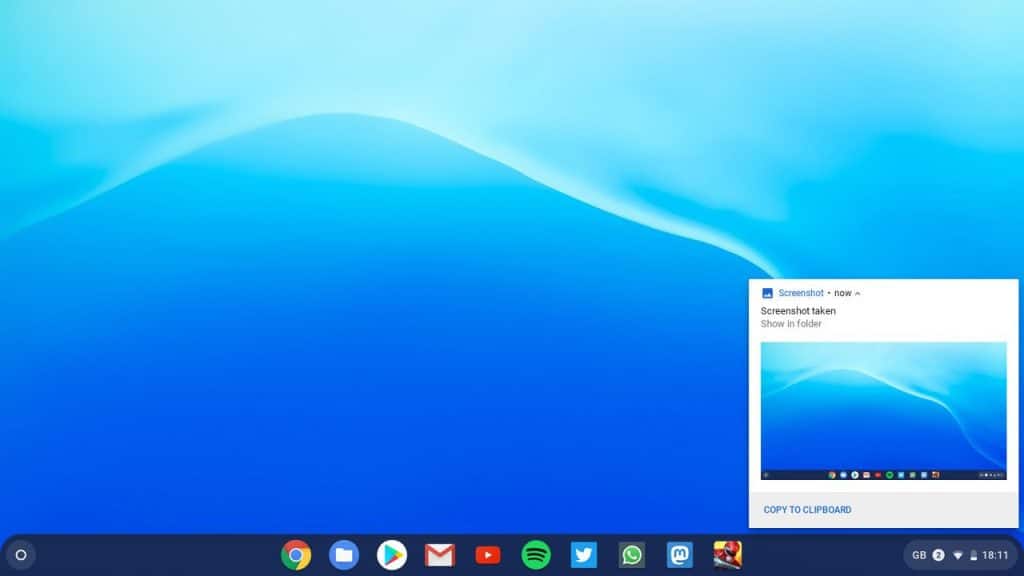
ChromeOS resembles a simplified version of a traditional desktop. A shelf at the bottom holds pinned apps, the system tray and a clock — the position and function are close to the Windows taskbar. Clicking on the circular launcher button in the corner brings up a grid of app icons and a search bar that accesses installed apps, Google Drive, web results and system settings all at once.

Tabs run at the top of browser windows as they do in Chrome everywhere. The line between the operating system and the browser becomes blurred all the time because they are pretty much the same thing. The window chrome (small “c”) around web pages is identical to the interface of the desktop itself. Opening Gmail in ChromeOS is similar to opening an app, but under the hood it is still a webpage.

Virtual desks allow users to create several layers of workspaces and switch between them. Snap windows to halves or quarters of the screen using keyboard shortcuts. A tablet mode comes into play when users detach or fold a convertible Chromebook, and the layout becomes more user-friendly for touch. The shelf adjusts, app windows expand, and interactions become focused on touch gestures rather than mouse precision.

The search on the launcher doubles as a system-wide command bar. When you type a calculation, you get a result. When you type a conversion, you get a conversion back. Typing an app name opens it. Typing a file name locates the file in Google Drive or on local storage. Users who learn the keyboard shortcut to open the launcher (the Search/Launcher key on Chromebook keyboards, or the Windows/Command key when using an external keyboard) minimize the distance between any task and the starting point for that task.

THE SECURITY ARCHITECTURE

ChromeOS developed its security model into the structure of the OS instead of tacking on protection. There are three mechanisms that work in combination.

Verified Boot is executed each time the device is powered on. The system compares itself to a known good copy of the OS written in read-only firmware. If anything in the boot chain has changed — corrupted, modified, replaced — the system refuses to continue loading from that state and offers to restore. An attacker who manages to compromise the running OS will find the next boot undoes the damage without the user doing anything.

Sandboxing separates each tab, each app, each process from everything else running. Code running in a browser tab cannot access the operating system. Code running in one app cannot access another app. If a compromised website tries to execute malicious code, it executes within its own isolated container. Escaping that container to impact the host system requires chaining multiple separate exploits together — a much harder attack than attacking an unpatched application on a traditional OS.

Automatic updates bridge the gap between vulnerability disclosure and patch delivery. ChromeOS performs full updates on a four-week cycle with critical security fixes coming sooner if the situation demands. The update is applied in the background to a second, inactive, partition while the user continues to work. On next restart, the device boots up in the updated partition. If the update causes problems, the previous partition remains intact as a fall back. This process is never experienced by the user. They don’t decline updates, delay them or forget about them.

ChromeOS stores the OS partition read-only. Users are not able to write to it even if root access is enabled. A virus that wanted to embed itself persistently in the OS would need to write to a partition that the OS architecture prohibits writing to.

Google says there has been no publicly documented successful ransomware attack on a ChromeOS device. This is not to say ChromeOS is immune to all threats — malicious Chrome extensions, phishing and account compromise affect ChromeOS users as they do users of any platform. But the combination of Verified Boot, sandboxing, read-only OS, and automatic updates eliminate whole categories of attack that regularly hit Windows and macOS.

APP SUPPORT: LAYERS on top of the web

ChromeOS began as web only and added capability in waves, each wave adding a new category of software that would run along with web apps.

Progressive Web Apps (PWAs) are websites wrapped into installable apps. A PWA installs from Chrome into the ChromeOS launcher, appears in the shelf and opens in its own window with no visible address bar. Behavior-wise it resembles a native app. Twitter, Spotify, YouTube Music and Microsoft Teams are all PWAs on ChromeOS. The quality varies. Some PWAs have a very similar match to their native counterparts; others lag behind in terms of features or offline support. Chrome itself has pushed PWAs as the future of web application delivery, and Google’s own services — Drive, Docs, Sheets, Slides, Gmail — work well as PWAs on ChromeOS.

Android apps joined ChromeOS in 2016 via Google Play. The integration goes through a subsystem which has changed significantly since its introduction. The current implementation, called ARCVM (App Runtime for Chrome using a Virtual Machine), runs Android apps in an isolated virtual machine running Android 13. This provides security separation for the Android environment from ChromeOS itself. Most Android apps work. Some, especially those intended specifically for phone-size screens, don’t adapt gracefully to laptop display sizes. Games have different performances depending on hardware. But Google Play provides Chromebooks with access to hundreds of thousands of apps — more than any laptop platform other than Windows.

Linux apps achieved official support in 2018 with a project called Crostini. When a user enables Linux on ChromeOS, the system downloads and runs a virtual machine called Termina, which runs a Debian Linux container. From there, any Linux application that can be installed on Debian will install and run in that container. The files, apps, and terminal look integrated into ChromeOS’s own launcher and Files app. VS Code, GIMP, LibreOffice, and development tools such as Git and Python all run in this environment. Linux apps don’t have perfect hardware acceleration or consistent touchpad support in all cases, but for developers who need command line tools or Linux-only software, the capability is meaningful. Importantly, it runs without having to disable ChromeOS’s security features — developer mode is not required.

The same integration is available in the form of ChromeOS Flex, a free installer Google released in 2022 that puts ChromeOS on existing PC and Mac hardware. ChromeOS Flex takes the security model and automatic updates to older hardware, often extending the useful life of machines that Windows has outpaced. Flex doesn’t support Android apps (it runs on hardware Google doesn’t certify for Play Store) and it does support Linux apps on capable hardware and the full web app experience everywhere.

LIMITATIONS

ChromeOS draws a clear line around what it does well, and users who need things outside of that line will find it frustrating.

Native Windows applications don’t work. Photoshop’s full desktop version, the full Microsoft Office suite, AutoCAD, specialized professional software in fields such as engineering or audio production — none of these have ChromeOS versions, and there is no compatibility layer making them work. There are web versions of Office, Photoshop, etc., but they have gaps in features their native counterparts don’t. Users that find those gaps in the middle of a project find them significant.

Linux apps fill some of this space but not without friction. Installing a Linux application involves enabling the Linux environment, waiting for the environment to download, and then using either a terminal or a Linux app store to find and install software. The apps function within their container but are sometimes out of place with the ChromeOS UI, and hardware acceleration is inconsistent across machines.

Offline capability has improved but is still a real concern. ChromeOS is able to cache Google Docs, Sheets, and Slides for offline editing, and progressive web apps with offline modes function without internet. But the philosophy of the system is cloud-first and users who lose connectivity lose access to large parts of their workflow in ways that wouldn’t be possible on a traditional OS.

Gaming has been minimal in the past. Steam released in beta for ChromeOS in 2023, and runs via a virtual machine much like the one SteamOS does on the Steam Deck. It worked on Chromebooks with minimum hardware specs. In August 2025, Google announced that it would end support for Steam on ChromeOS in January 2026, due to the upcoming architectural transition. Cloud gaming via services such as Nvidia GeForce NOW and Xbox Cloud Gaming is browser-based and does not need powerful local hardware.

MANAGEMENT for Institutions and Businesses

The Chrome Enterprise Upgrade license opens up the management layer that made Chromebooks the IT department’s platform of choice. Administrators control thousands of devices from Google Admin Console — a web dashboard that allows them to push policies, block websites, force-install or remove extensions, configure Wi-Fi profiles, set up user restrictions, enable or disable features like Linux apps or Android apps, and see the status of every enrolled device in their fleet.

Zero-touch enrollment allows administrators to provision devices without having to touch them. Chromebooks bought under a domain automatically enrol when powered on and connected to the internet. A teacher unpacking a cart of 30 new chromebooks turns them on and hands them to students; enrollment occurs in the background.

Device management over 600 configurable policies include the ability to lock down devices into kiosk mode – a configuration that restricts the device to a single app or website, used in retail for point-of-sale systems, in healthcare for patient intake, and in education for standardized testing. A device in kiosk mode cannot be used for anything else until it is released by an administrator.

The 10-year automatic update guarantee Google extended in 2021 means that a Chromebook purchased today has security updates through 2031 at the very least. For schools purchasing devices in bulk, this update horizon is more important than almost any other specification. It breaks the cycle of purchasing new hardware every three years in order to be within a supported OS.

CHROMEOS FLEX

ChromeOS Flex removes the OS from the Chromebook hardware and places it on whatever is there. Older laptops and desktops — machines running Windows 7 or 10 on aging hardware, machines that Windows 11 won’t install on due to TPM requirements — run ChromeOS Flex without those restrictions. Installation is approximately 20 minutes. Google keeps a certification list of hardware that it tests and supports, but the OS installs on a lot more hardware than the certification list implies.

The use case is organizations that have a fleet of older machines and can’t afford a hardware refresh. Schools in this situation can provide a viable five-year extension to older machines instead of purchasing new Chromebooks or Windows machines.

Flex does not support Android apps, which is the biggest difference from standard ChromeOS. It does support web apps and Linux apps on supported hardware.

THE ANDROID MERGER

In July 2025, Google confirmed plans that it had been building toward for years: ChromeOS and Android would come together in one unified platform, codenamed Aluminium OS. Google announced the official news at Qualcomm Snapdragon Summit in September 2025. The idea is to replace the Linux-based kernel of ChromeOS with the Android Linux kernel, while preserving the ChromeOS interface and desktop experience. Android frameworks would be the basis, the Chromebook experience would be on top.

Google’s VP of ChromeOS product management, John Maletis, said publicly that ChromeOS is not going away — the platform is continuing, the interface is continuing, and the 10-year update commitments on existing hardware are still in place. What is changing is the underlying architecture.

The practical motivation is efficiency. Maintaining two operating systems with two codebases meant duplicating work in areas of security patches, driver support, framework updates, and AI feature development. Unifying on Android’s kernel allows one engineering investment to be shared between phone and laptop product lines. Android’s Bluetooth stack already moved to ChromeOS with version 122 in early 2024, the first move in the consolidation that led to the 2025 announcement.

Launch of first Aluminium OS devices is on a 2026 timeline. x86 Chromebooks present a technical challenge — Android currently has no mainline supported x86 build for bare-metal hardware — that Google is working through. ARM-architecture Chromebooks have fewer complications. The result for users will be a desktop that looks and works like ChromeOS, on a foundation that shares code with every Android phone.

SYSTEM REQUIREMENTS

Standard ChromeOS: Ships on Chromebook hardware from Acer, ASUS, Dell, HP, Lenovo, Samsung, and others; ARM (MediaTek, Qualcomm) and x86 (Intel, AMD) processor architectures; all current Chromebooks receive 10 years of automatic updates from date of hardware release.
ChromeOS Flex: Intel or AMD x86/x86-64 processor; 4 GB RAM minimum (8 GB recommended); 16 GB storage minimum; no TPM chip needed; installs via bootable USB.
Chrome Enterprise Upgrade: Subscription license; managed in Google Admin Console; applies to any ChromeOS device.ChromeOS
Operating System
Developer: Google LLC
Platform: Chromebook hardware (AMD, Intel, MediaTek, Qualcomm); ChromeOS Flex installable on existing PCs and Macs
Price: Free (bundled with Chromebook hardware; Chrome Enterprise Upgrade license for businesses)
Latest Version: Rolling (major update every four weeks)
Website: chromeos.google

OVERVIEW

In 2006, a Google engineer named Kan Liu had become tired of Windows. He was building apps for the company and kept running into how much of the experience Windows demanded just to maintain itself — antivirus software, driver updates, patch cycles, bloat accumulated over years of use. He began to sketch out an alternative: an operating system that was built entirely around the internet, one that could boot in seconds, was secure without requiring any effort from the user, and ran fine on cheap hardware. Over the next few years, Liu and other Google engineers developed that concept into what became ChromeOS.

Google announced the project to the public in July 2009, calling it a system in which applications and data would reside in the cloud, instead of on the device. The pitch was simple to the point of seeming incomplete: the operating system would be a browser. Nothing more was important, because everything a person needed was online. Critics heard this as a product for people who had no idea what they needed.

The first commercial Chromebooks were shipped June 15, 2011. Samsung and Acer were the hardware partners. One reviewer described the Acer model as “essentially a large netbook.” Another called the Samsung “basically a browser with a keyboard.” The Register ran a piece late that year called “Chromebooks: The Flop of 2011?” The machines cost $350 to $500 — too much, critics argued, for a computer that couldn’t run any of the software people actually used.

Five years later, Chromebooks outsold Macs in the United States. By 2017, Chromebooks had just under 60 percent of the US K-12 education hardware market. The computers that reviewers called flops had taken over American classrooms faster than any device in the history of educational technology.

THE ORGINAL Concept and WHY SCHOOLs Bought it

Google had built the software; it needed someone who wanted to actually have it. Schools became that buyer. The qualities critics cited as weaknesses — a locked-down environment, no room for customization, total dependence on Google accounts — translated into advantages in a classroom. A teacher with 30 students didn’t need each machine with different software configurations. Chromebooks began the same, updated the same, and returned to a clean state when a student logged out. If a student broke something, it took two minutes to powerwash (Chromebook’s factory reset).

The price mattered too. Education budgets had been fueling the Windows/Mac duopoly for decades. A working Chromebook for $200 to $250 was really new. Google pushed OEMs to produce rugged, cheap classroom hardware, and they delivered. From 2012 to 2017, Chromebooks have moved from 5 percent of US classroom mobile devices to almost 60 percent. Apple’s education market share fell 33 percent in that window; Microsoft’s fell 21 percent.

By 2024, more than 38 million Chromebooks were in K-12 schools around the world, according to Futuresource Consulting.

THE INTERFACE

ChromeOS resembles a simplified version of a traditional desktop. A shelf at the bottom contains pinned apps, the system tray, and a clock — the location and functionality are close to the Windows taskbar. Clicking the circular launcher button in the corner brings up a grid of app icons and a search bar that searches into installed apps, Google Drive, web results and system settings all at once.

Tabs run at the top of browser windows, as they do in Chrome everywhere. The distinction between the operating system and the browser is blurring all the time because they are largely the same thing. The chrome (small “c”) around web pages is identical to the desktop’s own interface. Opening gmail in chromeos looks like opening an app, but under the hood, it is still a webpage.

Virtual desks allow users to create multiple layers of workspaces, and switch between them. Snap windows to halves or quarters of the screen using keyboard shortcuts. A tablet mode is activated when users detach or fold a convertible Chromebook, which switches to a touch-friendly layout. The shelf adjusts, app windows expand, and interactions change to touch gestures rather than mouse precision.

The search on the launcher doubles as a system-wide command bar. When you type a calculation, you get a result. A conversion is returned when typing a conversion. Typing an app name opens it. If you type a file name, it is found in Google Drive or on local storage. Users who learn the keyboard shortcut to open the launcher (the Search/Launcher key on Chromebook keyboards, or Windows/Command key when using an external keyboard) decrease the distance between any task and its starting point.

THE SECURITY ARCHITECTURE

ChromeOS built its security model into the structure of the OS rather than adding protection on top. Three mechanisms work in combination.

Verified Boot is executed every time the device is powered on. The system compares itself with a known good copy of the OS that is stored in read-only firmware. If anything in the boot chain has changed — corrupted, modified, replaced — the system refuses to continue loading from that state and offers to restore. An attacker who manages to compromise the running OS will find the next boot undoes the damage without the user doing anything.

Sandboxing separates each tab, each app, each process from everything else running. Code running in a browser tab cannot access the operating system. Code executed in one app cannot access another app. If a compromised website tries to execute malicious code, it is executed within its own isolated container. Escaping that container to the host system requires chaining multiple separate exploits together — a much harder attack than targeting an unpatched application on a traditional OS.

Automatic updates eliminate the gap between vulnerability disclosure and patch deployment. ChromeOS delivers full updates every four weeks, but critical security fixes come faster than that when the situation calls for it. The update is done in the background on a second, inactive partition while the user continues to work. On next restart, device boots in to the updated partition. If the update causes problems, the previous partition remains intact as a fall back. Users never interact with this process. They don’t say no to updates, postpone them, and forget about them.

ChromeOS stores the OS partition as read-only. Users cannot write to it even if they have root access enabled. A virus that wanted to embed itself persistently in the OS would have to write to a partition that the OS architecture does not allow writing to.

Google has no publicly documented successful ransomware attack on a ChromeOS device. This isn’t to say that ChromeOS is immune to all threats — malicious Chrome extensions, phishing and account compromise affect ChromeOS users as much as they do users of any platform. But the combination of Verified Boot, sandboxing, read-only OS, and automatic updates eliminate whole categories of attack that regularly hit Windows and macOS.

APP SUPPORT: LAYERS ON Top of the Web

ChromeOS began as a web-only OS and built in the ability in stages, with each stage adding a new class of software that would run in parallel with web apps.

Progressive Web Apps (PWAs) are installable websites. A PWA installs from Chrome into the ChromeOS launcher, appears in the shelf and opens in its own window without a visible address bar. Behavior-wise it appears like a native app. Twitter, Spotify, YouTube Music and Microsoft Teams are all PWAs on ChromeOS. The quality varies. Some PWAs are very similar to their native counterparts; others are behind in terms of features or offline support. Chrome itself has pushed PWAs as the future of web application delivery, and Google’s own services — Drive, Docs, Sheets, Slides, Gmail — work well as PWAs on ChromeOS.

Android apps came to ChromeOS in 2016 via Google Play. The integration goes through a subsystem which has evolved significantly since its introduction. The current implementation, called ARCVM (App Runtime for Chrome using a Virtual Machine), runs Android apps in an isolated virtual machine running Android 13. This gives security separation between the Android environment and ChromeOS itself. Most Android apps work. Some, especially those designed especially for phone-sized screens, don’t adapt gracefully to laptop display sizes. Games have different performances depending on hardware. But Google Play gives Chromebooks access to hundreds of thousands of apps — more than any laptop platform other than Windows.

Linux apps were officially supported in 2018 via a project called Crostini. When a user enables Linux on ChromeOS, the system downloads and runs a virtual machine called Termina, which then runs a Debian Linux container. From there, any Linux application that can be installed on Debian will be installed and run in that container. The files, apps and terminal appear integrated into ChromeOS’s own launcher and Files app. VS Code, GIMP, LibreOffice and development tools like Git and Python all run in this environment. Linux apps don’t have perfect hardware acceleration or consistent touchpad support in all cases, but for developers who need command-line tools or Linux-only software, the capability is meaningful. Importantly, it does not require disabling ChromeOS’s security features — developer mode is not required.

The same integration is available as ChromeOS Flex, a free installer Google released in 2022 that puts ChromeOS on existing PC and Mac hardware. ChromeOS Flex takes the security model and automatic updates to older hardware, often extending the useful life of machines that Windows has outpaced. Flex doesn’t support Android apps (it runs on hardware Google doesn’t certify for Play Store); it does support Linux apps on capable hardware and the full web app experience everywhere.

LIMITATIONS

ChromeOS draws a pretty clear line around what it does well, and users who need things outside of that line will find it frustrating.

Native Windows applications do not run. Photoshop’s full desktop version, the full Microsoft Office suite, AutoCAD, special-purpose professional software in areas such as engineering or audio production — none of these have ChromeOS versions, and no compatibility layer makes them work. Web versions of Office, Photoshop, and others exist, but they have feature gaps their native counterparts don’t. Users who find those gaps in the middle of a project find them significant.

Linux apps fill some of this space, but not without friction. Installing a Linux app involves enabling the Linux environment, waiting for the environment to download, and then using either a terminal or a Linux app store to find and install software. The apps function within their container but are sometimes mismatched against the ChromeOS UI, and hardware acceleration is inconsistent from machine to machine.

Offline capability has improved but it is still a real concern. ChromeOS is able to cache Google Docs, Sheets, and Slides for offline editing, and progressive web apps with offline modes work without internet. But the philosophy of the system is cloud first, and users who lose connectivity lose access to large portions of their workflow in ways that wouldn’t happen on a traditional OS.

Gaming has always been minimal. Steam launched in beta for ChromeOS in 2023, running through a virtual machine similar to the one SteamOS uses on the Steam Deck. It worked on Chromebooks with minimum hardware specs. In August 2025, Google announced that it would terminate support for Steam for ChromeOS in January 2026, citing the pending architectural transition. Cloud gaming through services such as Nvidia GeForce NOW and Xbox Cloud Gaming works in the browser without the need for powerful local hardware.

MANAGEMENT for Institution and Businesses

The Chrome Enterprise Upgrade license opens up the management layer that made Chromebooks an IT department’s platform of choice. Administrators control thousands of devices from Google Admin Console — a web dashboard that allows them to push policies, block websites, force-install or remove extensions, set up Wi-Fi profiles, set up user restrictions, turn on or off features like Linux apps or Android apps, and see the status of every enrolled device in their fleet.

Zero-touch enrollment allows administrators to provision devices without having to touch them. Chromebooks that are bought under a domain automatically enroll when they are turned on and connected to the internet. A teacher unpacking a cart of 30 new chromebooks turns them on and hands them to students; enrollment happens in the background.

Device management over 600 configurable policies including the ability to lock down devices into kiosk mode — a configuration that restricts the device to a single app or website, used in retail for point-of-sale systems, in healthcare for patient intake, and in education for standardized testing. A device in kiosk mode cannot be used for anything else until an administrator releases it.

The 10-year automatic update guarantee that Google extended in 2021 means that a Chromebook purchased today receives security updates through 2031 at the very least. For schools purchasing devices in bulk, this update horizon is more important than almost any other specification. It breaks the cycle of purchasing new hardware every three years to be in a supported OS.

THE ANDROID MERGER

In July 2025, Google confirmed plans it had been building towards for years; ChromeOS and Android would merge into one unified platform, codenamed Aluminium OS. Google made the formal announcement at the Qualcomm Snapdragon Summit in September 2025. The idea is to replace the Linux-based kernel of ChromeOS with the Android Linux kernel, leaving the ChromeOS interface and the desktop experience intact. Android frameworks would be the foundation; the Chromebook experience would be on top.

Google’s VP of ChromeOS product management, John Maletis, said publicly that ChromeOS is not going away — the platform is still around, the interface is still around, and the 10-year update commitments on existing hardware are still in force. What changes is the underlying architecture.

The practical motivation is efficiency. Maintaining two operating systems with different codebases meant duplication of effort when it came to security patches, driver support, framework updates, and AI feature development. Unifying on the kernel of Android allows a single engineering investment for both phone and laptop product lines. Android’s Bluetooth stack already moved to ChromeOS with version 122 in early 2024, the first step in the consolidation that resulted in the 2025 announcement.

Launch of the first Aluminium OS devices is on a 2026 timeline. x86 Chromebooks pose a technical challenge — Android currently has no mainline supported x86 build for bare-metal hardware — that Google is working through. ARM-architecture Chromebooks have fewer complications. The result for users will be a desktop that looks and works like ChromeOS, on a foundation that shares code with every Android phone.