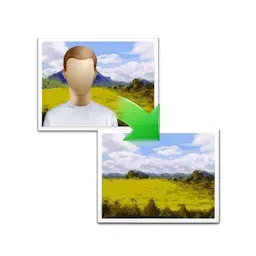
AI Photo Object Eraser is a small Windows photo editor for removing an unwanted person, sign, wire, spot, or other selected object from one image. The user paints over the object, and a local image model fills the marked area with pixels inferred from its surroundings. AI Photo Object Eraser changes the saved image rather than the original scene, and it does not recover a real background that the camera never recorded.
The mark guides removal
The model does not choose the target by name. The painted selection tells AI Photo Object Eraser which pixels may change. A mark that misses part of an edge can leave a fragment, while a mark that covers too much can erase nearby detail that should remain.
Brush size and zoom control the precision of that mark. A broad brush suits an isolated object against a plain wall or sky. Hair, branches, shadows, and repeating patterns need a closer view and smaller strokes. Zoom changes the view, not the source resolution.
Filling uses nearby pixels
AI Photo Object Eraser estimates replacement texture from the visible area around the selection. Flat backgrounds give the model clear material to continue. A person covering a patterned fence or a large part of a face leaves fewer matching clues.
The replacement can therefore contain smears, repeated shapes, or broken lines even when the object disappears. This is a limit of the available image information, not proof that another click will reveal the hidden scene. Inspect straight edges and textures at full size before saving.
Small areas go first
The documented workflow recommends removing small objects before large ones. Clearing a small distraction leaves a simpler surrounding area for the next pass. It also makes a failed result easier to undo without losing a larger successful edit.
Large regions may work better as one painted block or as several smaller passes. The cleaner choice depends on the background. AI Photo Object Eraser may need several attempts, so use Undo after a weak fill rather than painting repeatedly over an artifact that the previous pass created.
Undo is not history
Undo reverses a recent edit, while Reset returns the current work toward its starting state. These controls help compare selection strategies during one session. They are not a permanent edit history stored inside an exported JPEG or PNG.
Saving over the only source removes the easiest route back to the untouched photograph. Open a copy or save the result under another name. Resetting the program later cannot reconstruct an original file that another save already replaced.
Processing stays local
AI Photo Object Eraser runs its model on the computer and does not require the photograph to upload to a remote service. This keeps the image on the local machine during processing. It also means the computer performs the work and no server account carries unfinished edits to another device.
The portable package can run without a normal installation, while the installer integrates the program into Windows in the usual way. Portable does not mean the edited image lives only in memory. The chosen save folder still determines where the result and any sensitive photograph remain.
Formats set boundaries
AI Photo Object Eraser reads and writes JPEG and PNG. PNG transparency remains available for images that already use transparent areas. JPEG has no alpha channel, so saving a transparent composition as JPEG replaces that capability with ordinary image pixels.
The program works on one image at a time rather than applying one selection across a folder. That matters when a camera series contains the same obstruction: each frame has a different background relationship and needs its own mark. A clean removal on one photograph does not define the correct pixels for the next.